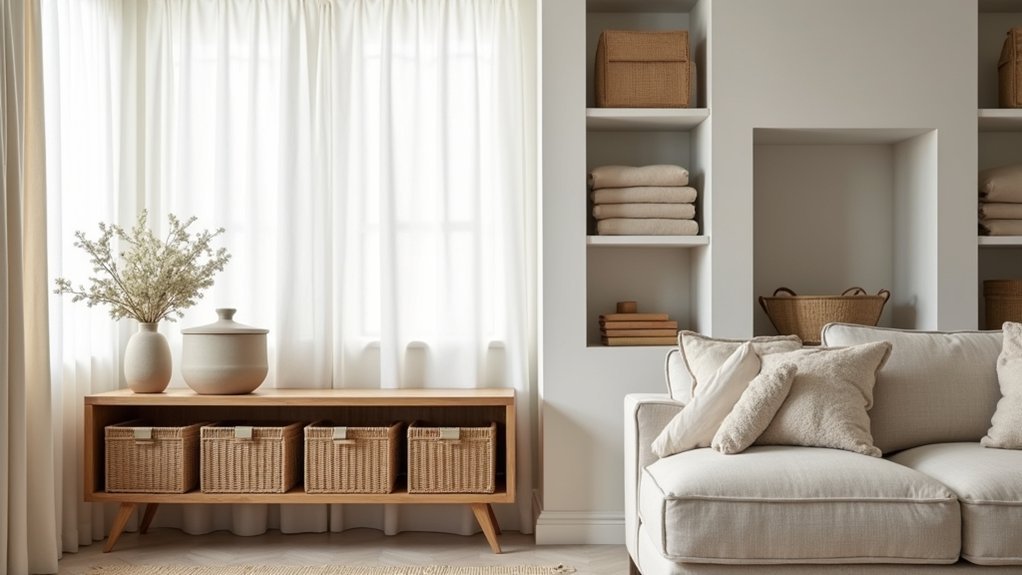
 Andrew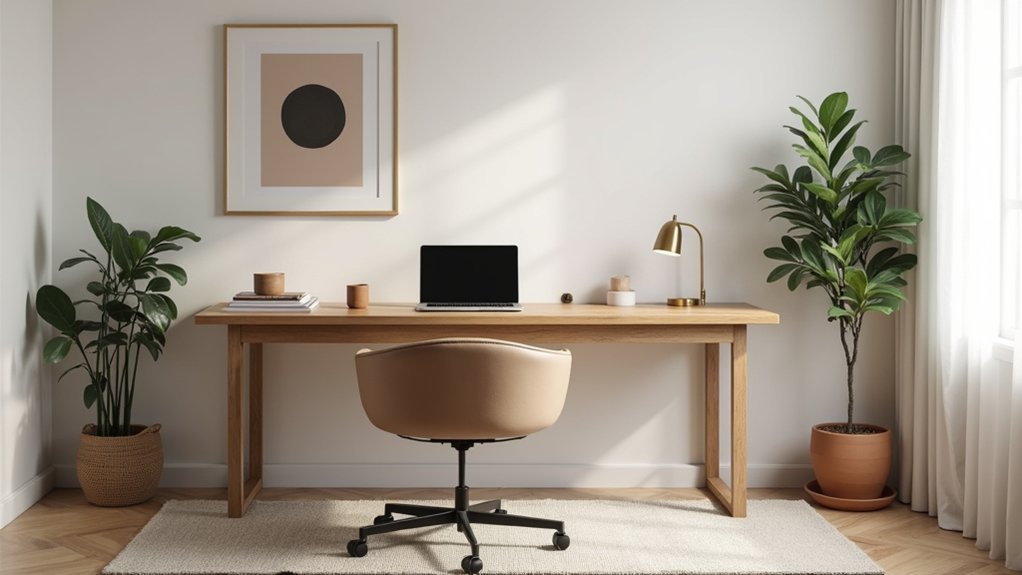
By coincidence, you’re probably adjusting your chair or squinting at your screen right now, which is exactly where a calmer home office starts. You’ll get more focus when your layout has clear zones, your desk and chair fit your posture, and your lighting stays warm without glare. Add hidden storage, quiet the room, and keep your video-call backdrop clean. Next, you’ll see how a few small choices can change how you work every day…
Plan Your Home Office Layout First
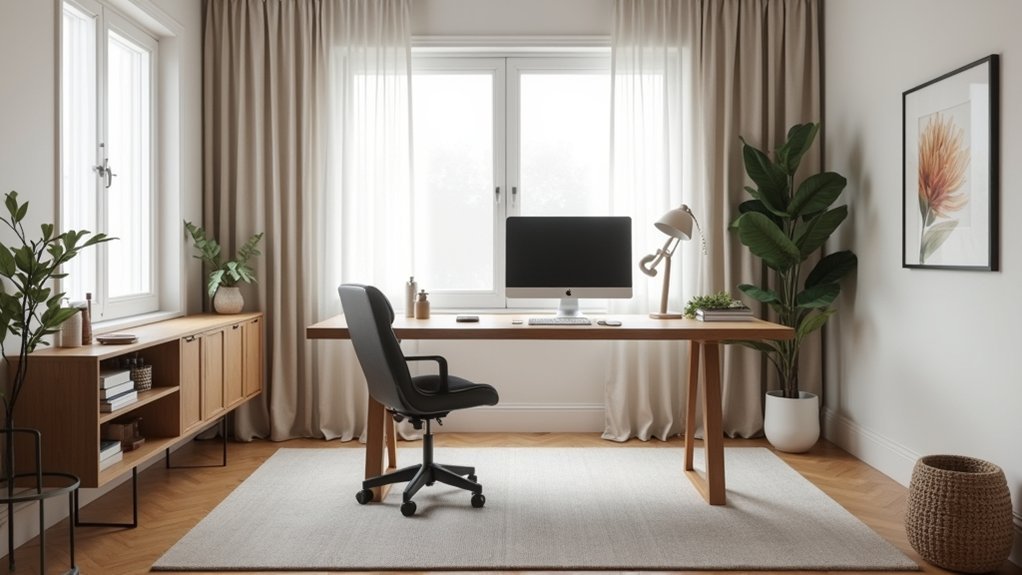
Before you buy a desk or hang a single shelf, map out your home office layout so every square foot works for you. Measure wall lengths, window placements, and outlet locations, then sketch a scaled plan.
Define workspace zoning: a primary work zone for your desk, a support zone for storage and supplies, and a separate call or reading spot if you’ve got the room.
Protect traffic flow by keeping clear paths from the door to seating and storage; you shouldn’t squeeze past corners or trip over cords.
Position your screen perpendicular to windows to reduce glare, and leave a landing strip near the entrance for mail or devices.
Test it with painter’s tape before you commit.
Pick an Ergonomic Chair for Real Comfort
If you’re going to upgrade one piece of your home office, make it an ergonomic chair—because it affects your focus, posture, and energy for hours every day.
Look for adjustable lumbar support that meets the curve of your lower back, not a generic pillow. Prioritize a seat with depth adjustment so you’re supported without pressure behind your knees, plus breathable mesh or quality foam that won’t compress fast.
Armrests should adjust up/down and in/out to reduce shoulder tension while you type or take calls. Choose a stable five-point base, smooth-rolling casters that match your floor, and a tilt mechanism you’ll actually use.
Before buying, check the warranty, weight rating, and return window—you’ll feel the difference within a week.
Set Desk Height for Comfortable Posture
After you’ve locked in an ergonomic chair, set your desk height so your elbows land at about 90° and your wrists stay neutral. Most seated setups work best around 28–30 inches (71–76 cm), depending on your chair and body.
If you’re using a standing desk, aim for a surface that meets your elbows at roughly the same 90° bend, typically in the 38–46 inch (97–117 cm) range.
Nail these targets and you’ll look polished on camera while keeping your shoulders relaxed and posture consistent all day.
Ideal Sitting Desk Height
While your chair sets the baseline, your desk height locks in the posture you’ll keep for hours, so it’s worth dialing in precisely.
After adjusting chair height so your feet rest flat and knees sit near 90 degrees, set the desk so your elbows also land around 90 degrees with shoulders relaxed.
Your forearms should glide level to the keyboard, not angle up or drop down.
Aim for a 1–2 inch clearance between thighs and the underside of the desk to prevent pressure points.
Keep your mouse at the same height as your keyboard to avoid wrist deviation.
Finish by optimizing monitor placement: top third of the screen at or slightly below eye level, centered, about an arm’s length away.
Fine-tune in 5 mm moves.
Standing Desk Height Range
Two quick targets keep your standing desk dialed in: set the surface so your elbows sit at roughly 90° with shoulders down, and keep your wrists straight as your hands float over the keyboard.
For most adults, that lands your standing desk height in the 36–48 inch range, but your exact number depends on footwear and keyboard thickness. Use height adjustment to fine-tune in ¼–½ inch steps: if your shoulders creep up, lower the top; if you’re bending forward or reaching, raise it.
Keep your screen so the top third sits at eye level, and place the mouse beside the keyboard to avoid wrist deviation.
Recheck after 10 minutes standing; posture settles and so should the desk.
Style Your Home Office Lighting to Reduce Glare
Because glare can tank your focus and make screens feel harsher than they need to, style your home office lighting with intent: combine soft ambient light with a targeted task lamp, and position each source to bounce light off walls or ceilings instead of blasting directly into your eyes.
Start with dimmable ambient lighting (a floor lamp or shaded ceiling fixture) to keep contrast low; then add an adjustable desk lamp with a diffused shade for crisp work zones.
Place your monitor perpendicular to windows, not facing them, and use sheer shades to control midday hotspots.
Aim your task light from the side opposite your writing hand to cut shadows.
Choose 2700–3500K bulbs and high-CRI LEDs for clean, comfortable glare reduction all day.
Use Calm Colors in Your Home Office Palette
Once you’ve tamed glare with smarter lighting, your color palette can do the next round of heavy lifting for focus. Start with muted palettes—soft warm whites, greige, stone, or dusty blue—so your screen and paperwork stay visually dominant, not your walls.
Aim for soothing tones in large areas (walls, rug, curtains), then add controlled contrast with charcoal, ink, or matte black in small doses to sharpen edges and keep the space feeling intentional.
Test paint chips at desk height and check them morning to night; many “calm” colors swing green or pink under LEDs. If you’re renting, bring calm through a large desk mat, fabric pinboard, or wall art with a limited, repeatable palette.
Keep finishes low-sheen to reduce reflection.
Create Visual Calm With Clutter-Free Surfaces
You’ll get instant visual calm when you edit your desktop down to true essentials—your laptop, a single notebook, and one pen cup.
Corral everything else with hidden storage solutions like a slim drawer insert, a lidded box, or a cabinet-mounted file.
When your surfaces stay clear, your office looks more premium and you’ll work with less mental noise.
Edit Desktop Essentials
Even if your office has great lighting and a solid chair, a crowded desktop will still make the space feel noisy. Edit ruthlessly: keep only what supports your daily workflow, and relocate the rest.
Start with your “touchpoints”—laptop, notepad, pen, water—and give each a defined zone. Limit desktop accessories to a matching set: one pen cup, one tray for active papers, one charger, one task light. Choose low-profile pieces with clean lines so your eye moves easily.
Tighten workspace organization by batching similar items and setting a reset rule: clear the surface at day’s end in two minutes. If it doesn’t earn its spot by frequency or function, it’s visual static.
Use Hidden Storage Solutions
A edited desktop stays calm only if the overflow has somewhere smart to go, so put hidden storage to work and keep surfaces visually quiet.
Start with a desk that includes hidden compartments for chargers, sticky notes, and backup pens, then label each zone so you can reset fast.
Add concealed organizers inside drawers to separate cords, files, and small tech, and reserve the top drawer for daily tools only.
Use a lidded box or pull-out tray for receipts and mail so paper doesn’t sprawl.
Mount a slim cabinet or floating shelf with doors to stash reference books and spare supplies within reach but out of sight.
Finish with a weekly “clear-down” routine: you’ll maintain focus and a clean backdrop for calls.
Add Storage That Hides Work-in-Progress Mess
When deadlines stack up and projects overlap, your desk can’t stay showroom-neat—so plan for storage that conceals the in-progress clutter without slowing you down. Choose hidden storage within arm’s reach: a credenza with doors, a drawer unit on casters, or a lift-top bench that swallows files and tech.
Set up zones for fast drop-and-go clutter concealment. Use labeled magazine files for active client folders, a lidded box for chargers and adapters, and a shallow drawer tray for receipts and sticky notes. Keep one “Today” bin and one “This Week” bin, then review them every Friday.
Add a rolling cart with a fitted cover so supplies disappear in seconds. You’ll protect your focus while keeping momentum.
Style Your Home Office Backdrop for Video Calls
For video calls, you’ll look more polished when you choose a calm, uncluttered background that keeps attention on you.
Next, control light and glare by facing a soft window or lamp and adjusting screen brightness so your face reads clearly on camera.
Finish by curating a few intentional on-camera details—one plant, a framed print, a tidy shelf—so your backdrop feels professional, not staged.
Choose A Calm Background
One calm, consistent background can instantly make your video calls look more polished and less distracting. Start by choosing a single “anchor” surface behind you: a blank wall, closed bookcase, or credenza top.
Keep the palette muted—soft white, warm greige, dusty blue, or matte charcoal—so your face stays the focal point.
Edit what’s in frame like a product display: limit props to two or three, repeat materials (wood, black metal, linen), and hide anything with loud labels.
Add one simple element for depth, like a framed print, plant, or textured panel, and keep it centered or symmetrically placed.
That calm background supports a peaceful ambiance and signals competence without trying too hard.
Control Light And Glare
Even if your backdrop looks perfectly styled, harsh light and screen glare can make it read messy on camera. Position your desk so natural lighting hits you from the front or 45 degrees, not from behind, to avoid silhouettes and blown-out windows. If you’re stuck with a bright window, add a sheer shade to soften contrast without killing daylight.
For glare reduction, angle your monitor slightly downward and away from light sources, and keep glossy frames or glass shelves out of the camera’s line. Use a matte screen protector if reflections persist.
Set your webcam at eye level, then lock exposure in your video app so shifting daylight doesn’t pulse across your background. Finally, match bulbs to one color temperature to prevent odd casts.
Curate On-Camera Styling
Once you’ve tamed light and glare, your backdrop can finally look as polished on screen as it does in person. Set your camera at eye level, then frame for a clean rectangle behind you: a solid wall, a simple bookcase, or one large artwork beats busy collage. Keep 2–3 feet between you and the background to add depth and reduce shadows.
Edit the scene like a product shot: hide cords, remove clutter, and group objects in odd numbers for balance. Choose matte finishes to prevent hotspots, and repeat one accent color so the image reads calm.
Test your on camera wardrobe against the backdrop; high-contrast solids help your professional appearance. Do a quick recording check before calls.
Control Noise for Focus in a Home Office
If background noise keeps pulling your attention off the screen, you’ll get more done by treating sound like a design problem, not a personal flaw. Start by finding the leak points: door gaps, thin windows, and hard floors that bounce voices and street sound. Use fast, affordable soundproofing techniques like a door sweep, weatherstripping, and a thick rug pad to cut transmission.
Next, manage echo inside the room: add soft furnishings and choose acoustic panel options that fit your layout—adhesive tiles behind your monitor, freestanding panels near a doorway, or a ceiling cloud above your desk.
For calls, position your mic close and lower input gain, then add a white-noise machine outside the room to mask spikes. Test, adjust, repeat weekly.
Finish With Decor That Supports Focus, Not Clutter
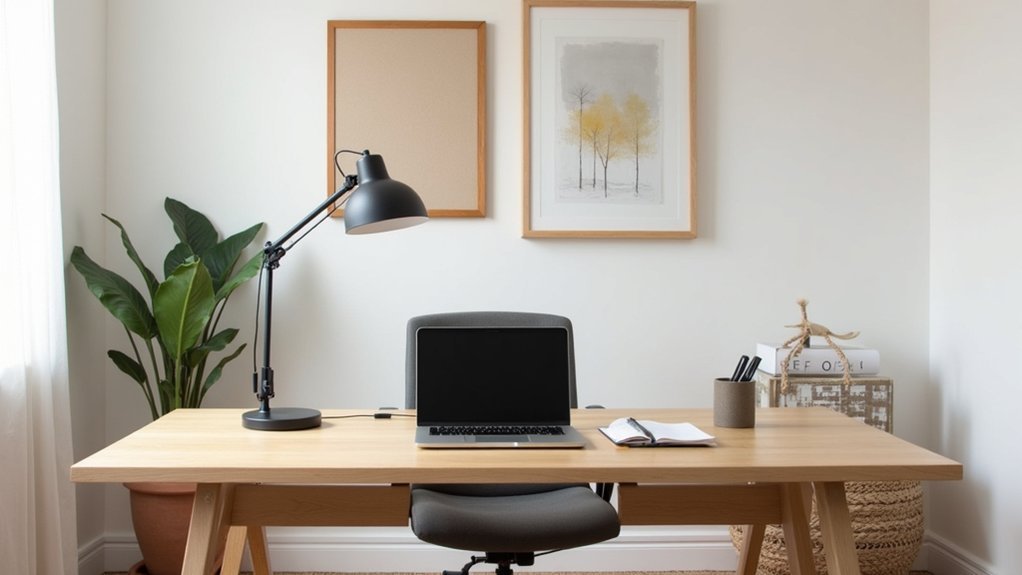
Quieter acoustics set the stage, but the decor you choose determines whether your home office stays mentally calm or turns into visual noise. Treat every item as a tool: if it doesn’t help you work or recover, it doesn’t earn a spot.
Start with Decor organization: corral pens, cables, and chargers in a lidded box, and use a slim tray for daily essentials so your desktop clears in seconds. Build clutter reduction into the room by choosing closed storage for bulk supplies and one open shelf for curated, low-contrast objects.
Keep wall art to one anchor piece, centered at eye level, and match frames to your hardware for cohesion. Add one living plant for softness, then stop—negative space is a feature. Clean lines keep your attention on tasks.
Frequently Asked Questions
How Can I Style a Home Office in a Shared or Multipurpose Room?
Carve a “captain’s corner” with a foldaway desk and rolling cart so work docks and disappears. Prioritize desk organization with trays, cable clips, and labeled bins. Use lighting solutions: clamp lamp, dimmable bulb, and shade.
What’s the Best Way to Add Greenery Without Increasing Maintenance or Allergies?
Choose Low maintenance plants like snake plant, ZZ plant, or pothos in self-watering planters; you’ll cut upkeep. For hypoallergenic greenery, prioritize smooth-leaf varieties, avoid flowering types, and wipe leaves weekly to reduce dust and pollen.
How Do I Choose Art for a Home Office Without Making It Distracting?
Choose art with muted colors, simple shapes, and minimal text so it supports focus. Skip loud motivational posters; pick calm abstract artwork instead. Keep pieces small, limit to one wall, and frame consistently.
What Are Renter-Friendly Ways to Upgrade a Home Office Without Permanent Changes?
Choose peel-and-stick wallpaper, plug-in sconces, and a removable rug to refresh your office fast. Add Temporary accessories like a monitor riser and cable tray. Use portable storage carts and shelves to boost function.
How Can I Keep My Home Office Comfortable Year-Round Without Raising Energy Bills?
You’ll stay comfortable year-round by sealing drafts, using a programmable thermostat, and running a quiet fan instead of cranking HVAC. Add ergonomic furniture and targeted lighting solutions so you’re comfortable at lower temps and use less energy.